FazalLabPipelines
Introduction to Using the Command Line
Welcome! This page will give you a quick introduction to using the TACO cluster. When you sign in to the TACO cluster, everything is controlled by the command line, which is where you type commands for the computer to execute. Here are a few simple commands you will want to know!
Sign In to the TACO Cluster
Open your command prompt (Windows) or terminal (Mac) application and type this command,
replacing myuserid with your user ID:
ssh myuserid@taco.grid.bcm.edu
Then press “Enter”.
If this is your first time signing in from the command line, you will see a message saying
that “The authenticity of host ‘taco.grid.bcm.edu (10.66.4.154)’ can’t be established.” This
is normal, and it only happens the first time. Type yes and hit “Enter”.
When prompted, type your password (it will be hidden as you type) and press “Enter”.
Now you’re in!
Navigate
You may be wondering, “Now I’m in? In where? Where am I on the TACO cluster?” That’s a great question! Here’s a map:
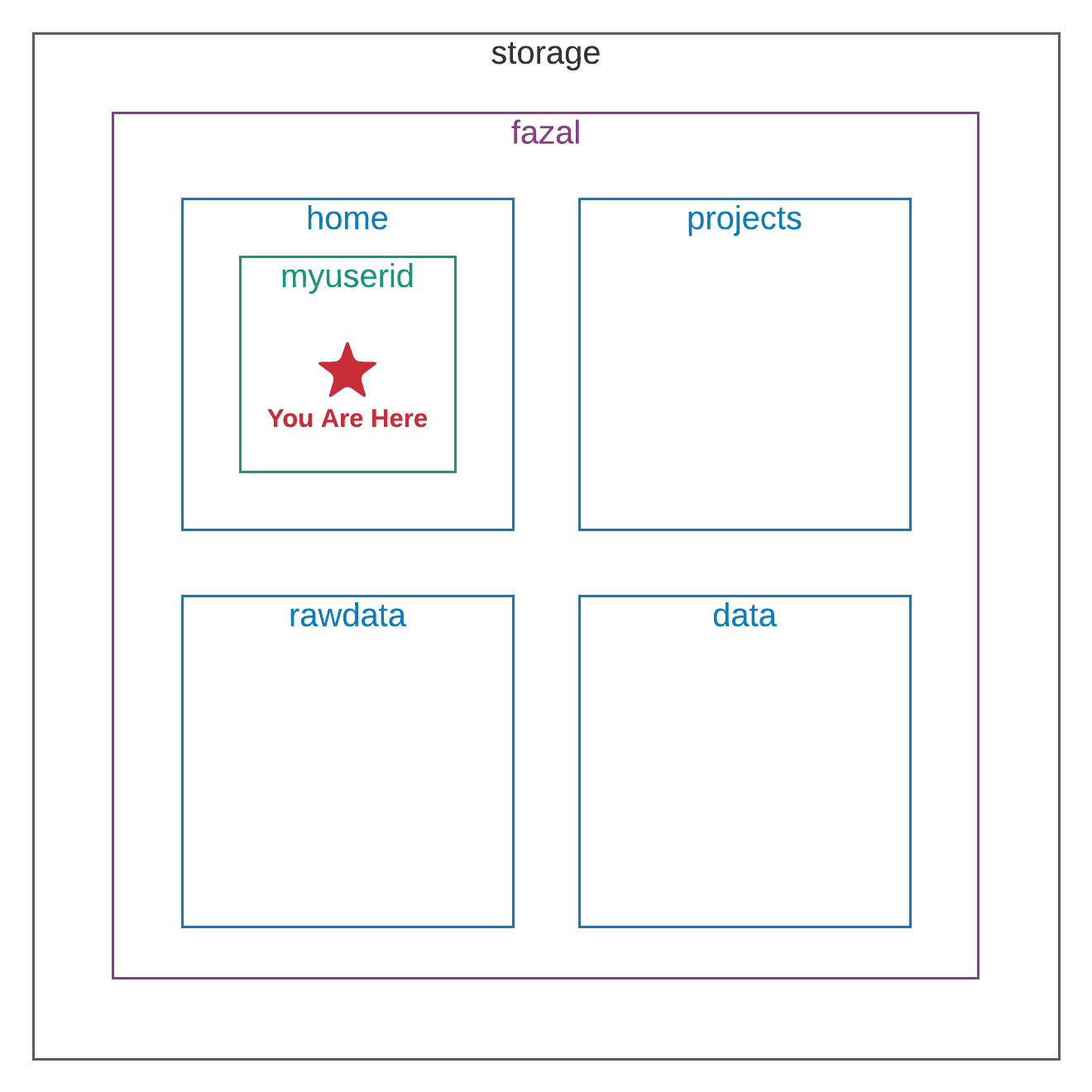
You are in a folder named myuserid, which is inside a folder named home. The folder home
is inside a folder named fazal, which is inside the “root” folder named storage. You can
also draw the map like this:
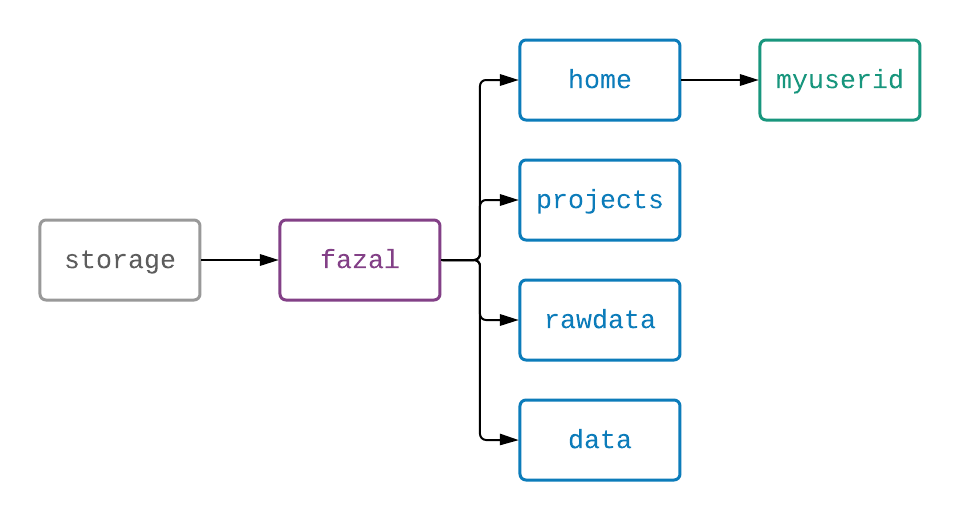
To quickly describe where you are, this is your address:
/storage/fazal/home/myuserid
This address is also called an absolute path, because it shows the path to your location all the
way from the “root” folder. To print your absolute path on the screen, type the command pwd and press
“Enter”. pwd stands for “Print Working Directory”, which is the same as “show current folder”.

If you want to change your location, use the command cd, which stands for “Change Directory”. After
you type cd, hit the spacebar and type the address of your destination so that the computer knows
where to take you.
cd /absolute/path/to/destination
Then press “Enter” and you will arrive at your destination!

Once you arrive at your destination, you can use the command ls to “List” the contents of your
current folder.

Now you know how to use pwd to print the address to your current folder, cd to change folders,
and ls to list the contents of your current folder. That’s everything you need to know about
navigating from the command line!
Create, Copy, and Rename
To make a new folder inside your current folder, use the mkdir command. It stands for “Make
Directory”. Type mkdir and the name of your new folder, but make sure that the name only has
letters, numbers, underscores, hyphens, and periods in it. (Spaces and other special characters
will confuse the computer.)
mkdir NewFolderName
To copy a file, use the cp command with the absolute path to the file you want to copy and the
absolute path to where you want to copy it.
cp /absolute/path/to/filetocopy.fastq.gz /absolute/path/to/destinationfolder
To rename a file in your current folder, use the mv command. It stands for “Move”, because you
are going to move the same file to a new name. Type the command as well as the old name and new
name of the file.
mv oldfilename.fastq.gz newfilename.fastq.gz
Now you know the basics of the command line!
Accessing the TACO Cluster in a More Familiar Way than the Command Line
The pipelines need to be run from the command line, so it is important to know the commands described above. However, if you are anything like me, I bet you would feel more comfortable using a file viewer app to create, rename, copy, move, and delete your files and folders!
Download an SSH Client File Viewer
Windows
WinSCP is an app like File Explorer that lets you view files on your local computer and a remote computer (such as the TACO cluster) at the same time. Click here to download WinSCP. When the download finishes, open the installer and accept the defaults. Open the WinSCP application once it is installed.
Mac
FileZilla is an app like Finder that lets you view files on your local computer and a remote computer (such as the TACO cluster) at the same time. Click here to download FileZilla. When the download finishes, open the FileZilla application.
Sign In to the TACO Cluster from Your File Viewer
Use this information to sign in to the TACO cluster:
Host:     taco.grid.bcm.edu
Username: (your BCM user ID)
Password: (your BCM password)
Port:     22
The first time you sign in with the app, you will see the same message saying that “The authenticity of host ‘taco.grid.bcm.edu (10.66.4.154)’ can’t be established.” Choose “yes” to accept this message.
Now you should see the files from your local computer on the left of your screen and the files from the TACO cluster on the right of your screen. Right click (Windows) or Ctrl click (Apple) for the option to create, open, copy, rename, or delete a file or folder. Drag a file or folder to move it. To download (from the cluster to your computer) or upload (from your computer to the cluster), simply drag files or folders from one side to the other. Pretty intuitive!
Now you are ready to use the FazalLabPipelines!